






Home / Creative / Avatar Creator
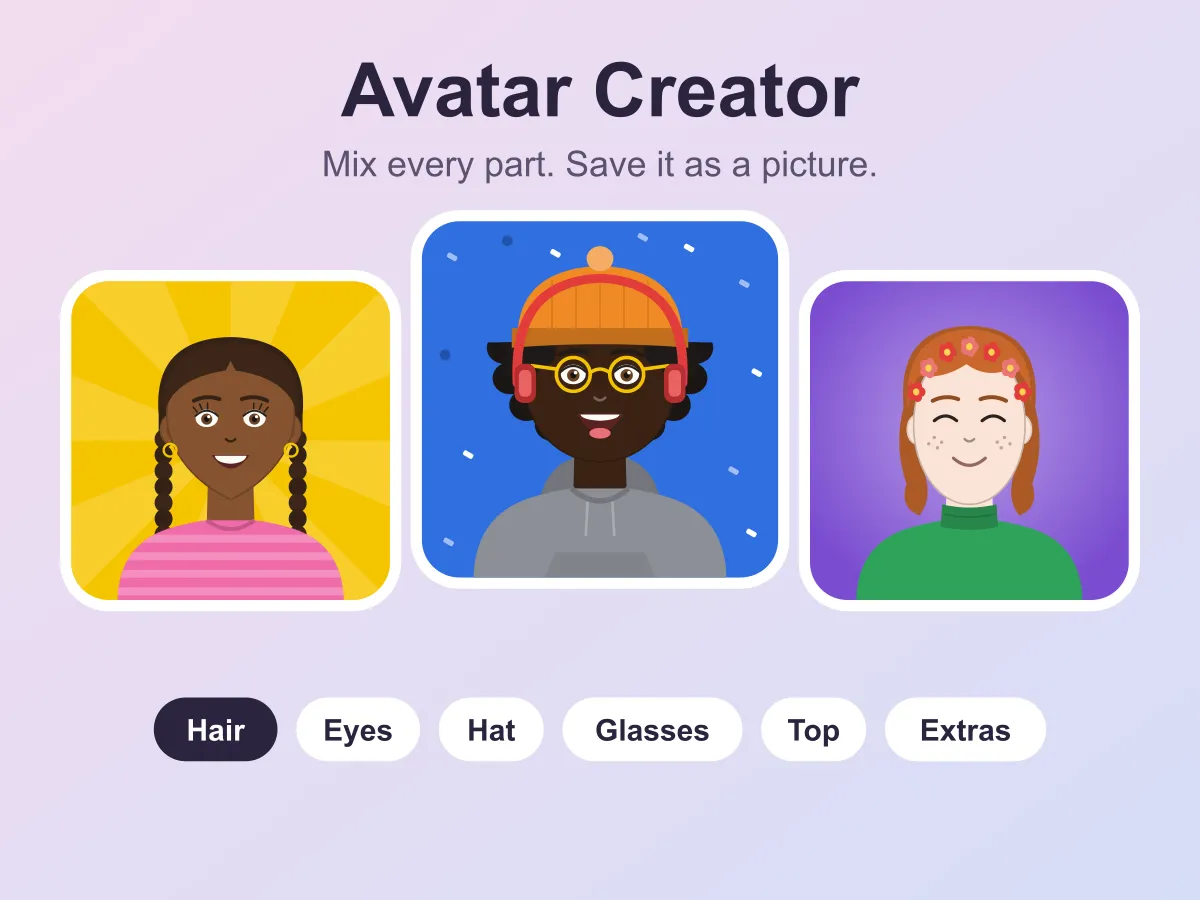
Avatar Creator is a free avatar maker you use straight from the browser, with no download and no sign-up. You build a cartoon portrait part by part: six face shapes and ten natural skin tones from very light to deep brown, fourteen hairstyles — among them an afro, braids, curls, a bob, a top bun and a mohawk — in thirteen hair colours, seven eye styles in seven eye colours, brows, noses, eight mouths, six kinds of facial hair, six pairs of glasses, nine hats and headpieces, eight tops, extras such as freckles, earrings, a scarf or headphones, and eight backdrops. Every colour also has a custom picker, so the palette is only a starting point. Each part is drawn to fit the head it sits on, so a beanie squashes an afro instead of floating on top of it and a beard follows a square jaw as well as a round one. The Random button deals a whole new look, and a lock on any part keeps it exactly as it is while everything else changes. Undo and Redo go back as far as a hundred steps. Save up to twelve avatars to a gallery that stays in your browser, and download any of them as a 1024-pixel PNG or as an SVG that scales to any size. Every avatar is also written out in words under the picture and inside the SVG file, ready to use as alt text. For something to aim at, Briefs mode hands you a client — “Could you give me round glasses, a green hat and no facial hair?” — and counts your changes against the fewest the brief could be met in.
How to play Avatar Creator
- Choose a tab along the top of the parts drawer: Face, Hair, Eyes, Brows, Nose, Mouth, Beard, Glasses, Hat, Top, Extras or Backdrop. Each one shows its choices as small previews of your own avatar wearing them.
- Tap a choice to put it on. Tabs that have a colour — skin, hair, eyes, frames, hats, tops, extras and the backdrop — show a row of swatches underneath, plus a Custom picker for any colour at all.
- Hair colour is shared by the hair and the beard, and the brows follow it too, a shade darker so blonde and white hair still has brows you can see.
- Press Random for a whole new avatar. To keep a part you like, open its tab and press Lock first — Random then leaves that part, and its colour, exactly as it was.
- Undo and Redo step back and forward through your changes, up to a hundred of them. Dragging the custom colour picker counts as one change, not one for every shade you pass on the way.
- Press Save to keep the avatar in the gallery under the picture. It holds twelve; tap one to load it back into the editor, or its × to delete it. The gallery stays in this browser.
- Press PNG to download a 1024×1024 picture, or SVG for a file that stays sharp at any size. The sentence under the avatar describes it in words, and the SVG carries that same sentence as its title.
- Briefs mode gives you a client with a short list of wishes and a start look. Change the avatar until every wish is ticked, then press Deliver. Spot on means you used the fewest changes the brief allows.
- On a keyboard, ← and → change the part on the open tab, ↑ and ↓ move between tabs, R rolls the dice, L locks the tab, and Ctrl+Z / Ctrl+Shift+Z undo and redo.
Tips
- Lock the two or three parts that make the avatar yours — often the face, the skin tone and the hair — and then press Random a few times. It is the fastest way to try outfits and backdrops around a face you have already settled on.
- The option previews show your current avatar wearing each choice, so compare hairstyles and hats on your own face rather than guessing from a label.
- Hats that sit down over the head (a beanie, a cap, a bucket hat, a beret, a sun hat) hide the hair above their brim; a headband, a crown, a flower crown or a bow sits on top of the hair instead. Pick by the look you want, not just the hat.
- For a profile picture, choose a backdrop colour that contrasts with the hair — a dark afro on a dark backdrop disappears in a small circle crop.
- Use SVG when the avatar is going somewhere it may be shown big, like a slide or a poster. Use PNG for chat apps and profiles that only take ordinary pictures.
- In Briefs, count before you click: a wish for a coloured hat when the client has no hat costs two changes, one for the hat and one for its colour. A change you undo is not counted.
- Save a version before a big change. The gallery is the only place a look survives once you move on, and loading one back is a single step you can undo.
FAQ
Is Avatar Creator free?
Yes. It runs in your browser with no download, no account and nothing to buy. Every part, every colour, the gallery and both download formats are there from the first visit.
Can I download my avatar?
Yes, in two formats. PNG downloads a 1024×1024 picture that works anywhere a photo does. SVG downloads the drawing itself, which stays sharp at any size and carries a sentence describing the avatar as its title.
How many skin tones and hairstyles are there?
Ten natural skin tones from very light to deep brown, and fourteen hairstyles — bald, buzz cut, short, side part, curly, afro, bob, long, wavy, ponytail, top bun, braids, spiky and mohawk — in thirteen hair colours. Every colour also has a custom picker, so any shade you want is available.
Does it save my avatars?
The avatar you are working on is saved as you go, and the gallery keeps up to twelve more. Both are stored in this browser on this device only — nothing is uploaded, so clearing your browser data or switching device will not carry them across. Download a PNG or SVG to keep a copy for good.
What does the lock button do?
It holds a part still when you press Random. Lock the Hair tab, for example, and every roll keeps the same hairstyle and hair colour while the face, clothes and backdrop change around it. You can lock as many tabs as you like; a small dot on a tab shows it is locked.
What is Briefs mode?
A light challenge on top of the editor. Each of the twelve numbered briefs gives a client with a starting look and two to six wishes, like round glasses or a green top. Meet them all and press Deliver; if you did it in the fewest changes the brief allows, it counts as spot on. New brief deals a fresh one at any time.
Can I use my avatar as a profile picture?
Yes. The avatars are drawn from scratch for this site rather than copied from any character or brand, so a picture you make is yours to use as a profile picture, in a chat or in a school project.
Does Avatar Creator work on a phone?
Yes. On a phone held upright the avatar sits on top and the parts drawer below it, with the tabs and colour swatches scrolling sideways. Every part is a tap, and both downloads work in mobile browsers.
Can I make it with just the keyboard?
Yes. The left and right arrows change the part on the open tab, up and down move between tabs, R deals a random look, L locks the open tab, and Ctrl+Z and Ctrl+Shift+Z undo and redo. The Tab key reaches every button, swatch and the custom colour picker too.